Google Apps Script UrlFetchApp OpenAI API example: Sheets integration template
Working Google Apps Script code to call the OpenAI API from Google Sheets using UrlFetchApp. Includes a template, Chat Completions and Responses API examples, and batch processing with gpt-5.4-mini.
Integrate the OpenAI API in Google Sheets with custom Apps Script functions and a template for running tasks in bulk.
ChatGPT works well for quick questions and ideation. But if you're already working in Sheets, running data entry tasks end-to-end in one place tends to be more practical. Integrating the OpenAI API directly lets you manage everything from a single spreadsheet.
This guide and template with Apps Script code was updated April 2026 for the gpt-5.4-mini model and the Responses API.
Prerequisites
- OpenAI API key
Create a new API key (and Organisation Project) or ask your tech admin to generate a unique one for you.
Save the key somewhere safe and private as soon as it's generated.
- G-account to use Google Sheets
Google Sheets is free to use and is possible to get started with another email address provider e.g. Outlook.
Setting up
To get you running quickly, make the template yours by creating a copy, adding your API key and authorizing the Apps Script. You could then run the functions with the sample data there (in column F) as an initial test.
1. Make a copy of the updated Sheet template here for gpt-5.4-mini API model.

2. Next, you'll need to add your OpenAI API key. Go to Extensions > Apps Script > ⚙️ Project Settings > Script Properties > Add script property
For the 'Property' enter:
OPENAI_API_KEYFor 'Value' paste in your secret API key and then 'Save script properties'.
In the general settings above, check that the project time zone matches your local region.

3. Then you'll need to allow the Apps Script in order to connect OpenAI.
Next, go to Extensions > Apps Script > Editor > Debug

From the popup window, click 'Review permissions' and sign into Google if asked to.

Then click 'Advanced' > Go to 'gpt-5.4-mini'

Tick 'Select all' and click 'Continue' to allow securely encrypted cloud computing functions to make API calls to OpenAI.

Configuring the ChatGPT prompts
The script file you'll need to adjust is the 'config.gs' in the Apps Script Files Editor. This is where the main configurations are for writing instructions to ChatGPT. So, all you need to do is locate the "SYSTEM_PROMPT_PREPEND" AND "SYSTEM_PROMPT_APPEND" at the top of the file and swap out what's there between the straight apostrophes with your own prompts.
var SYSTEM_PROMPT_PREPEND = 'You are a search engine marketing expert. Please review the following keyword search intent and propose an article based on it:';

var SYSTEM_PROMPT_APPEND = 'Write your new article proposal in the form of a synopsis that could directly brief a content writer. Your response should be in plain text.';
This is the structure of what is sent to GPT:
i) Prepended prompt
e.g. "You are a search engine marketing expert. Please review the following keyword search intent and propose an article based on it:"
ii) Sheet data cell(s) - from the 'Input' column F
e.g. "how to train a puppy"
iii) Appended prompt
e.g. "Write your new article proposal in the form of a synopsis that could directly brief a content writer. Your response should be in plain text."
and then GPT's response will appear in the 'GPT Output' column G.
Generally, it's good prompt engineering practice to prepend a 'role' for the GPT, such as "You are a French translator" and give it a goal such as "You will identify the following excerpt's original language and translate it into French".
Following this "Prepended" prompt, will be data from the main Sheet "Input" column for context.
Then, you can append more specific expectations to your context.
Tip: Microsoft's perfect prompt formula is a good one to keep in mind when prompt engineering: 'goal + context + sources + expectations'. Wherein, a clear goal should be the heart of the prompt. Context is necessary for guiding the response. Sources and Expectations make the response more precise.
Running the custom functions
After saving your customisations to the 'System prompts for callGPT functions', go back to the main sheet and refresh the page.
Add context anywhere in column F: Input.
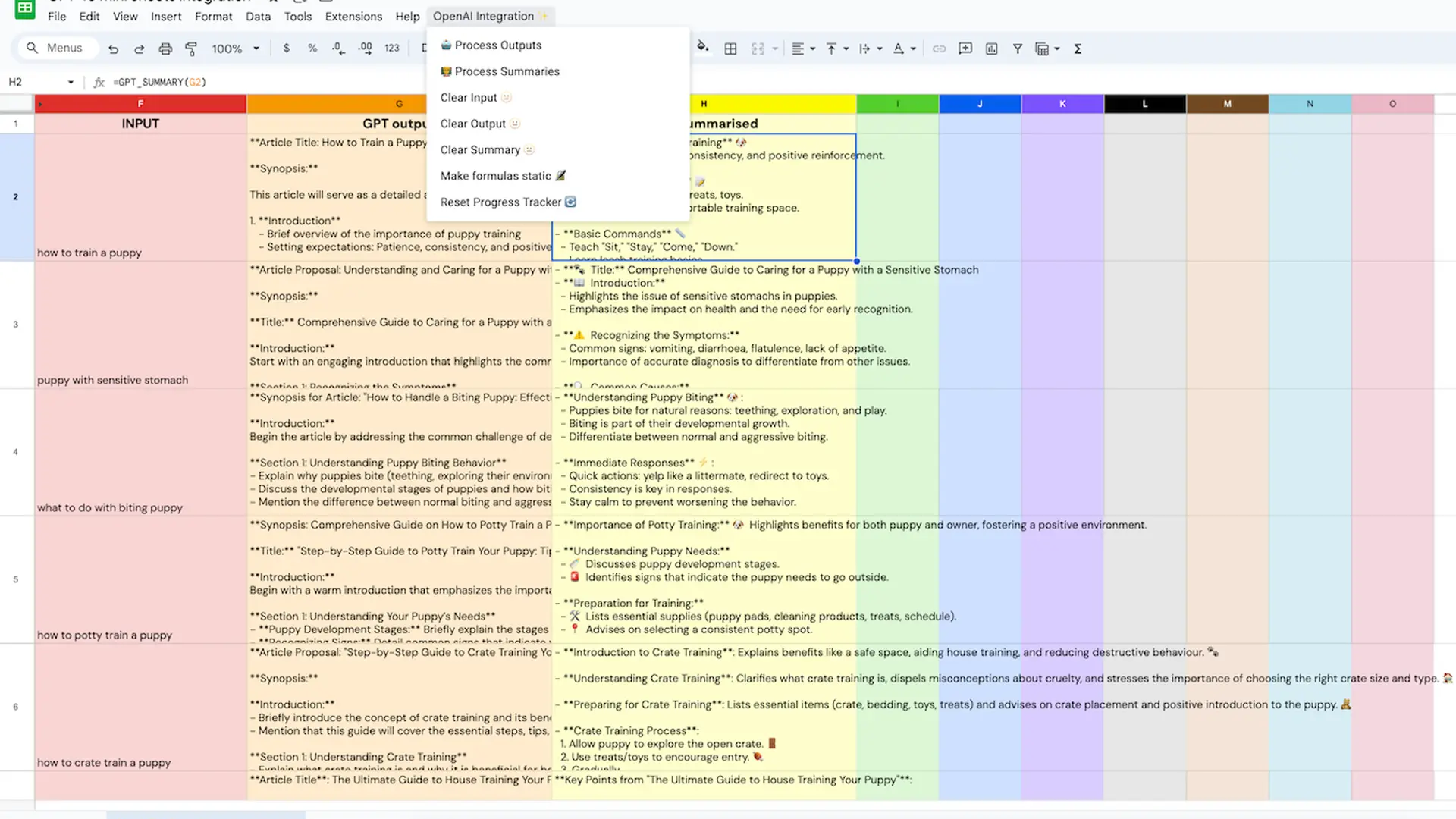
Now, you can either type the custom formula function "=GPT_OUTPUT" in any cell and use any cell location in the formula builder. Or use the toolbar menu "OpenAI Integration ✨" > "🤖 Process Outputs" to send the prepended/context input/appended prompt and fetch GPT's response.
By using the custom formula, you can use multiple rows of cells to be used as context in the prompt.
By using the custom function "🤖 Process Outputs" from the menu dropdown, you can run prompts per each row in automated batches. The default number of rows in a batch is 10, so you may experience an initial delay before seeing any responses.
The 2nd custom function you probably noticed, is the 'GPT_SUMMARY'/'🧑🏫 Process Summaries'. These are handy for summarising long-form responses in the 'GPT output' column G.
Tip: to brighten up your Sheets, type "PRIDE" across the first five columns.
Other useful functions
There's a 'ProgressTracker' tab for automatically recording the Sheet row number processed in case of time outs or if you added new rows of input that you want to process at a later time. Reset it to '2' (discounting the header row #1 in the 'ChatGPT function examples' tab) whenever you clear the columns or edit the prompts and want to restart from row 2.
Tip: use 'Reset Progress Tracker 🔄' in the toolbar menu to do it for you.
The final tab called 'Logs' records any errors you may encounter with OpenAI, such as issues with token limits or restrictions to ChatGPT's capabilities.
What do the custom toolbar menu functions do?
In the 'OpenAI Integration ✨' custom toolbar menu dropdown:
- '🤖 Process Outputs' takes whatever is in the Input column and sends it along inside your prompt to OpenAI row-by-row and returns ChatGPT's response in the corresponding row (in column G). It will automatically process rows in batches of 10 and stop when an empty Input cell is detected.
- '🧑🏫 Process Summaries' similarly takes whatever is in the GPT output column and sends it along inside your summary prompt to OpenAI row-by-row and returns ChatGPT's response in the corresponding row (in column H). It will automatically process rows in batches of 10 and stop when an empty GPT output cell is detected.
- 'Clear Input 🫥' deletes everything in column F (in the 'ChatGPT function examples' tab, excluding the heading)
- 'Clear Output 🫥' deletes everything in column G
- 'Clear Summary 🫥' deletes everything in column H
- 'Make formulas static 🔏' overwrites any cell with the custom formulas with the value (ChatGPT's response)
- 'Reset Progress Tracker 🔄' overwrites the row number recorded in the ProgressTracker tab (cell A2). The numbering reflects the Sheet row numbers in the 'ChatGPT function examples' tab.
Tip: remember to Reset the Progress Tracker before running the Process Summaries function or whenever you try a new prompt. You can also manually type in a row number you want to GPT to rerun or continue from.
Adjusting the OpenAI API configuration
In the config.gs file, locate the API and token configuration lines.
// API configuration
var API_URL = 'https://api.openai.com/v1/chat/completions';
var MODEL_VERSION = 'gpt-5.4-mini';
var BATCH_SIZE = 10; // Number of rows to process per batch

// Maximum tokens configuration
var MAX_TOTAL_TOKENS = 4096;
var DEFAULT_MAX_COMPLETION_TOKENS_OUTPUT = 8000; //100 tokens ~= 75 words
var DEFAULT_MAX_COMPLETION_TOKENS_SUMMARY = 150;
Generally, you may only need to change the OpenAI API model. The temperature parameter is not compatible with GPT-5.4 reasoning models.
Read more about GPT-5.4 reasoning and verbosity controls.
Tip: be mindful of straight (") vs curly (❝) quotation or apostrophe (' vs ’) marks when editing code.
The next section covers more detail on understanding and customising the integration.
Using the Responses API
OpenAI's Responses API (/v1/responses) is the recommended endpoint for new integrations. It replaces the message-based structure of Chat Completions with a simpler instructions + input format. It can handle conversation state server-side.
The Chat Completions endpoint (/v1/chat/completions) still works and isn't deprecated. If your existing integration runs fine, there's no urgency to migrate. For new projects, the Responses API is worth starting with.
Here's the equivalent UrlFetchApp call using the Responses API:
function callOpenAIResponses(input) {
  const apiKey = getOpenAIKey();
  const url = 'https://api.openai.com/v1/responses';

  const payload = {
    model: MODEL_VERSION,
    instructions: SYSTEM_PROMPT_PREPEND + SYSTEM_PROMPT_APPEND,
    input: input,
    max_output_tokens: DEFAULT_MAX_COMPLETION_TOKENS_OUTPUT,
  };

  const options = {
    method: 'post',
    contentType: 'application/json',
    headers: {
      'Authorization': 'Bearer ' + apiKey
    },
    payload: JSON.stringify(payload)
  };

  try {
    const response = UrlFetchApp.fetch(url, options);
    const data = JSON.parse(response.getContentText());
    const output = data.output_text.trim();

    if (isValidResponse(output)) {
      return output;
    } else {
      logUniqueError('Invalid Response', 'Input: ' + input + ', Output: ' + output);
      return 'Error';
    }
  } catch (error) {
    logUniqueError('API Error', 'Input: ' + input + ', Error: ' + error.message);
    return 'Error';
  }
}
The key differences from Chat Completions:
- System prompts go in the instructions parameter rather than a messages array
- User input goes directly in input instead of a message object with role: 'user'
- The response uses output_text instead of choices[0].message.content
- max_output_tokens replaces max_completion_tokens
- Starting with GPT-5.4, tool calling with reasoning is only supported in the Responses API
To switch the template to use the Responses API, update the API_URL in config.gs:
var API_URL = 'https://api.openai.com/v1/responses';Then replace the callOpenAIChat function in callGPT.gs with the callOpenAIResponses function above. The rest of the template (menu, batch processing, progress tracker) works the same way.
Building a custom OpenAI UrlFetchApp integration
You'll see in the template Apps Script project that there are 7 different files:
1. config.gs: contains global configuration settings for the batch function and custom cell formula calls to OpenAI API with token optimisation. The token calculator is custom-made and won't charge you OpenAI tokens, but using the GPT functions/scripts will be charged by OpenAI. It helps prevent timeouts and truncated or issue responses from ChatGPT.
// System prompts for callGPT functions
var SYSTEM_PROMPT_PREPEND = 'You are a search engine marketing expert. Please review the following keyword search intent and propose an article based on it:'; //Prepend a role and instructions for tasking the GPT
var SYSTEM_PROMPT_APPEND = 'Write your new article proposal in the form of a synopsis that could directly brief a content writer. Your response should be in plain text.'; // Additional prompt to append if needed

// System prompts for GPTsummarise functions
var SUMMARY_PROMPT_PREPEND = 'You are a British English editor. Please review the following text:'; //Prepend a role and instructions for tasking the GPT
var SUMMARY_PROMPT_APPEND = 'Summarize in plain text as a bullet point list of the most important points and use relevant emojis to highlight key points while staying true to the original content.'; // Additional prompt to append if needed

// Retrieve the API key securely from Project Settings > Script Properties
function getOpenAIKey() {
  return PropertiesService.getScriptProperties().getProperty('OPENAI_API_KEY');
}

// API configuration
var API_URL = 'https://api.openai.com/v1/chat/completions';
var MODEL_VERSION = 'gpt-5.4-mini';
var BATCH_SIZE = 10; // Number of rows to process per batch

// Maximum tokens configuration
var MAX_TOTAL_TOKENS = 4096;
var DEFAULT_MAX_COMPLETION_TOKENS_OUTPUT = 8000; //100 tokens ~= 75 words
var DEFAULT_MAX_COMPLETION_TOKENS_SUMMARY = 150;

function getMaxCompletionTokens(prompt, defaultMaxCompletionTokens) {
  const promptTokens = estimateTokens(prompt);
  return Math.min(defaultMaxCompletionTokens, MAX_TOTAL_TOKENS - promptTokens);
}

// Utility function to estimate token count
function estimateTokens(text) {
  // Simple estimation: 1 token per 4 characters (average for English text)
  return Math.ceil(text.length / 4);
}
2. callGPT.gs: Handles calling the OpenAI API with token calculation to perform the main task and generate a response in the 'GPT output' Sheet column.
function callOpenAIChat(input) {
  const apiKey = getOpenAIKey();
  const url = API_URL;

  const prompt = SYSTEM_PROMPT_PREPEND + input + SYSTEM_PROMPT_APPEND;
  const maxCompletionTokens=getMaxCompletionTokens(prompt, DEFAULT_MAX_COMPLETION_TOKENS_OUTPUT);

  const payload = {
    model: MODEL_VERSION,
    messages: [
      { role: 'system', content: SYSTEM_PROMPT_PREPEND + SYSTEM_PROMPT_APPEND },
      { role: 'user', content: input }
    ],
    max_completion_tokens:maxCompletionTokens,
  };

  const options = {
    method: 'post',
    contentType: 'application/json',
    headers: {
      'Authorization': `Bearer ${apiKey}`
    },
    payload: JSON.stringify(payload)
  };

  try {
    const response = UrlFetchApp.fetch(url, options);
    const json = response.getContentText();
    const data = JSON.parse(json);
    const output = data.choices[0].message.content.trim();

    if (isValidResponse(output)) {
      return output;
    } else {
      logUniqueError('Invalid Response', `Input: ${input}, Output: ${output}`);
      return 'Error';
    }
  } catch (error) {
    logUniqueError('API Error', `Input: ${input}, Error: ${error.message}`);
    return 'Error';
  }
}
3. GPTsummarise.gs: Handles calling the OpenAI API for generating GPT summaries in the 'GPT summarised' Sheet column. You could rework this to perform a different follow up task or make a copy of this to create a third follow up task for GPT to perform.
function callOpenAISummarize(input) {
  const apiKey = getOpenAIKey();
  const url = API_URL;

  const prompt = SUMMARY_PROMPT_PREPEND + input + SUMMARY_PROMPT_APPEND;
  const maxCompletionTokens=getMaxCompletionTokens(prompt, DEFAULT_MAX_COMPLETION_TOKENS_SUMMARY);

  const payload = {
    model: MODEL_VERSION,
    messages: [
      { role: 'system', content: SUMMARY_PROMPT_PREPEND + SUMMARY_PROMPT_APPEND },
      { role: 'user', content: input }
    ],
    max_completion_tokens:maxCompletionTokens,
  };

  const options = {
    method: 'post',
    contentType: 'application/json',
    headers: {
      'Authorization': `Bearer ${apiKey}`
    },
    payload: JSON.stringify(payload)
  };

  try {
    const response = UrlFetchApp.fetch(url, options);
    const json = response.getContentText();
    const data = JSON.parse(json);
    const output = data.choices[0].message.content.trim();

    if (isValidResponse(output)) {
      return output;
    } else {
      logUniqueError('Invalid Response', `Input: ${input}, Output: ${output}`);
      return 'Error';
    }
  } catch (error) {
    logUniqueError('API Error', `Input: ${input}, Error: ${error.message}`);
    return 'Error';
  }
}
4. sheetFunctions.gs: Contains functions to process outputs, summaries, clear columns, make custom functions static, and reset the Progress Tracker.
function processOutputs() {
  const sheet = SpreadsheetApp.getActiveSpreadsheet().getActiveSheet();
  const data = sheet.getDataRange().getValues();
  let lastProcessedRow = getLastProcessedRow();
  const batchSize = BATCH_SIZE;

  while (lastProcessedRow - 1 < data.length) {
    const end = Math.min(lastProcessedRow + batchSize - 1, data.length);
    const batch = data.slice(lastProcessedRow - 1, end);

    batch.forEach((row, index) => {
      if (row[5] && !row[6]) { // Column F (index 5) is input, Column G (index 6) is output
        const input = row[5];
        const output = callOpenAIChat(input);
        if (output !== 'Error') {
          sheet.getRange(lastProcessedRow + index, 7).setValue(output); // Write the output to column G (index 6)
        }
      }
    });

    lastProcessedRow = end + 1;
    setLastProcessedRow(lastProcessedRow);
    SpreadsheetApp.flush();
  }
}

function processSummaries() {
  const sheet = SpreadsheetApp.getActiveSpreadsheet().getActiveSheet();
  const data = sheet.getDataRange().getValues();
  let lastProcessedRow = getLastProcessedRow();
  const batchSize = BATCH_SIZE;

  while (lastProcessedRow - 1 < data.length) {
    const end = Math.min(lastProcessedRow + batchSize - 1, data.length);
    const batch = data.slice(lastProcessedRow - 1, end);

    batch.forEach((row, index) => {
      if (row[6] && !row[7]) { // Column G (index 6) is output, Column H (index 7) is summary
        const output = row[6];
        const summary = callOpenAISummarize(output);
        if (summary !== 'Error') {
          sheet.getRange(lastProcessedRow + index, 8).setValue(summary); // Write the summary to column H (index 7)
        }
      }
    });

    lastProcessedRow = end + 1;
    setLastProcessedRow(lastProcessedRow);
    SpreadsheetApp.flush();
  }
}

function clearColumn(column) {
  const sheet = SpreadsheetApp.getActiveSpreadsheet().getActiveSheet();
  const range = sheet.getRange(2, column, sheet.getLastRow() - 1, 1); // Start from row 2 to avoid headers
  range.clearContent();
}

function clearInput() {
  clearColumn(6); // Column F (index 6)
}

function clearOutput() {
  clearColumn(7); // Column G (index 7)
}

function clearSummary() {
  clearColumn(8); // Column H (index 8)
}

function makeCustomFunctionsStatic() {
  const sheet = SpreadsheetApp.getActiveSpreadsheet().getActiveSheet();
  const range = sheet.getDataRange();
  const formulas = range.getFormulas();
  const values = range.getValues();

  for (let row = 0; row < formulas.length; row++) {
    for (let col = 0; col < formulas[row].length; col++) {
      if (formulas[row][col].startsWith('=GPT_OUTPUT') || formulas[row][col].startsWith('=GPT_SUMMARY')) {
        sheet.getRange(row + 1, col + 1).setValue(values[row][col]);
      }
    }
  }
}

function resetProgressTracker() {
  const progressTrackerSheet = SpreadsheetApp.getActiveSpreadsheet().getSheetByName('ProgressTracker');
  progressTrackerSheet.getRange('A2').setValue(2);
}
5. helpers.gs: Contains JS helper functions for progress tracking, error handling, retry logic.
function getLastProcessedRow() {
  const progressTrackerSheet = SpreadsheetApp.getActiveSpreadsheet().getSheetByName('ProgressTracker');
  return parseInt(progressTrackerSheet.getRange('A2').getValue());
}

function setLastProcessedRow(row) {
  const progressTrackerSheet = SpreadsheetApp.getActiveSpreadsheet().getSheetByName('ProgressTracker');
  progressTrackerSheet.getRange('A2').setValue(row);
}

function logUniqueError(type, message) {
  const logSheet = SpreadsheetApp.getActiveSpreadsheet().getSheetByName('Logs');
  const existingErrors = logSheet.getDataRange().getValues();
  const errorIndex = existingErrors.findIndex(row => row[1] === message);

  if (errorIndex > -1) {
    // If error message already exists, append the affected row number
    logSheet.getRange(errorIndex + 1, 3).setValue(logSheet.getRange(errorIndex + 1, 3).getValue() + `, ${getLastProcessedRow()}`);
  } else {
    // Log new error with the initial row number
    logSheet.appendRow([new Date(), type, message, getLastProcessedRow()]);
  }
}

function isValidResponse(response) {
  // Basic validation example: ensure non-empty response
  return response && response.length > 20; // Example condition
}
6. menuUI.gs: Creates the custom toolbar menu in Google Sheets.
function onOpen() {
const ui = SpreadsheetApp.getUi();
ui.createMenu('OpenAI Integration ✨')
.addItem('🤖 Process Outputs', 'processOutputs')
.addItem('🧑🏫 Process Summaries', 'processSummaries')
.addItem('Clear Input 🫥', 'clearInput')
.addItem('Clear Output 🫥', 'clearOutput')
.addItem('Clear Summary 🫥', 'clearSummary')
.addItem('Make formulas static 🔏', 'makeCustomFunctionsStatic')
.addItem('Reset Progress Tracker 🔄', 'resetProgressTracker')
.addToUi();
}
7. customFunctions.gs: Contains custom functions for in-cell use (GPT_OUTPUT and GPT_SUMMARY formulas).
/**
 * Generates a GPT output for the given input.
 * @param {string} input The input text to process.
 * @return {string} The GPT output.
 * @customfunction
 */
function GPT_OUTPUT(input) {
  return callOpenAIChat(input);
}

/**
 * Generates a summary for the given GPT output.
 * @param {string} output The GPT output to summarize.
 * @return {string} The summarized output.
 * @customfunction
 */
function GPT_SUMMARY(output) {
  return callOpenAISummarize(output);
}
More considerations
The template covers the core Chat Completions and Responses API integration. Other OpenAI API endpoints handle images, audio and embeddings. The same UrlFetchApp pattern applies to each.
Tip: Google Sheets IMAGE function can render web images in your Sheet cell!
You could also integrate other AI APIs or LLMs to compare different AI responses in one place. Look for REST documentation and ask AI to help translate the scripts into Google Apps Script code.
Apps Script handles medium-sized automation well. At scale (thousands of rows or complex chains), Sheets slows down and a different framework makes more sense: Google Cloud Functions with BigQuery, or open-source stacks like Vercel AI SDK with PostgreSQL.
Beyond Apps Script, Google tools like Looker Studio and BigQuery offer deeper integration options, as do third-party Sheet add-ons.


